


If you’re in the habit of using your MacBook in areas like cafes, restaurants or even your kitchen table – you’re running the risk of having liquids spilled on it.
Subsequently damaging your $2,000+ MacBook – I.e. the dreaded “Liquid Damaged MacBook.”
Should this ever happen to you, here’s what you should do:
1. Turn off all power (for your own safety)
Needless to say, your safety comes first.
Cut the power by either flicking the wall socket switch or unplugging it fully.
Next, turn off the MacBook by holding down the power button and unplug all cords (including USBs, Mice/Keyboards, Monitors etc.)
If your MacBook has an internal battery, take it out immediately.
Quick tip: turn on auto-sync for Apple iCloud now so that your files and photos can be saved.
2. Dry off the liquid
You can either use a paper towel or cotton towel to dry off all the visible liquid.
Avoid “wiping” as this could push the water further into other areas of the MacBook. Instead “lap up” the liquid gently with a towel.
If you have a friend with you, have them hold the MacBook upside down (i.e. keys facing the floor), so that the water “falls” out from between the keys as you dry it.
Be sure to be thorough with the keyboard area, since liquids can seep into the small gaps between the keys.
If a lot of liquid has been spilt on the keyboard, turn it upside-down against a towel (so the keys are facing the towel).
This will let gravity pull the water out from between the keys and onto the towel.
3. Do not use Hot Air to dry the MacBook!
In the case where you have spilled liquid on your MacBook at home…
Don’t try to use a hair dryer, heater or oven to dry the MacBook – this will damage the electrical components!
Instead, use a desk fan or cold-air hairdryer (if your hairdryer has that option) to dry the liquid.
You can also use the method suggested by OSXDaily:
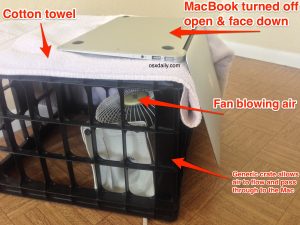
Image from OSXDaily
Place the towel / MacBook upside down against a crate with holes. Then place the fan directly below the MacBook inside the crate, and let it dry the MacBook (use the image above for guidance).
4. Wait at least 72 hours before turning the MacBook back on
It can take a very long time for liquids to dry so you should wait at least 72 hours before trying to turn it back on.
Or, if you want to leave it in the hands of a professional, skip this step and go straight to Step 5.
5. Take it to your nearest professional repair store (that might be us)
A professional will be able to make sure to take the appropriate steps to clean every component thoroughly.
They will take the MacBook apart and clean each individual piece of hardware.
Furthermore, mineral deposits can remain even after drying and these can cause short-circuits and more damage to the hardware, so a professional will ensure these are cleaned.
If you live near the North Shore or Penrose in Auckland, visit one of our branches to get help.
6. Unusual, little-known hacks to dry the MacBook
Lastly, here are some additional methods you can try to dry the liquids off your MacBook:
- Put the MacBook in a large container of rice (and cover it entirely with rice). Rice has the ability to absorb moisture and some Mac users have reported successfully reviving their MacBooks with this odd trick. However, be warned: it is possible for the rice to leave unwanted residue that can be difficult to clean!
- Sicilia Gel Packets also work in the same way rice does, without the residue – so this may be a better option if you have access to these packets
- Use a tungsten light to dry the MacBook as it emanates a small amount of heat (not enough to damage it)
In Conclusion
Overall, make sure to act quickly after the liquid has been spilt and you’ll have the best chance of saving your MacBook from further damage.
Do you know what to do if your iPhone gets damaged by liquids?
Find out what you can do by clicking here.
P.S. We’re offering an exclusive $20 discount to our newsletter subscribers for our Liquid Damage Mac Repair Services. We’ve helped thousands of MacBook owners with repairs and restoration.
Advanced Computers can also clean, repair, replace parts and restore data if required.
Come along to our store (North Shore or Penrose) and give us your name and email (that you’ve subscribed with), or present the coupon code (in the email that linked you to this article) to redeem your discount.