


Mission Control is a powerful feature on Mac and MacBook devices that offers users an organized, clear view of all open windows, apps, and spaces on their screens. Using Mission Control, Mac users can manage their workspace efficiently, switching between applications seamlessly without the hassle of searching through multiple open tabs or documents. This feature becomes especially valuable for those working on various tasks or projects, providing a streamlined experience and reducing the risk of missing important windows or notifications.
For anyone needing reliable Mac repair services in Auckland, understanding how to utilize tools like Mission Control can also help maintain their device’s performance over time. Advanced Computers, a trusted Mac repair company in Auckland, often recommends that users use this built-in tool to keep workflows smooth and organized. Not only does it help optimize productivity but it also offers an extra layer of simplicity, making it an essential feature for any Mac or MacBook user in Auckland.
Understanding Mission Control
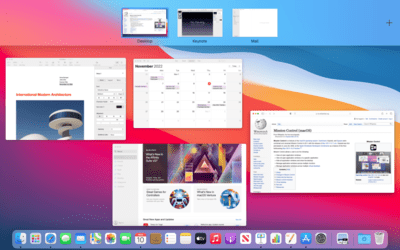
Mission Control is a helpful feature on your Mac that lets you see all your open windows, spaces, and apps at once. This tool provides an organized view, so you can easily switch between tasks or find the app you need without confusion. For Mac users in Auckland, Mission Control can simplify multitasking, enhancing your experience whether for work, study, or daily tasks.
Accessing Mission Control on your Mac is straightforward. You can open it in several ways, such as swiping up with three fingers on the trackpad, pressing the F3 key, or using keyboard shortcuts like Control + Up Arrow. These options make it convenient to access Mission Control based on your preferences and the setup of your Mac.
Once in Mission Control, navigating is simple. The interface displays your open windows in a tidy, organized layout, showing individual spaces at the top. If you use multiple desktops, these will appear across the top of the screen, allowing you to move between them smoothly. By hovering over each window, you can select and open the one you need instantly. Whether you’re considering Mac Repair in Auckland or exploring ways to optimize your Mac’s features, understanding Mission Control can make a big difference in keeping things running smoothly.
Advanced Computers Limited offers insights like these to help local users get the best from their Macs.
Workspace Management with Mission Control
Mac users often find that their desktops become cluttered with open windows and applications, making it difficult to stay productive. With Mission Control, you can manage and organize your workspace efficiently, helping you get more done on your Mac. This powerful feature enables you to handle multiple tasks without the frustration of constantly switching between windows. Let’s explore how Mission Control simplifies workspace management and keeps your Mac organized.
Organizing Open Windows and Applications
One of the best features of Mission Control is its ability to organize open windows and applications across your Mac. Instead of scrambling to find specific windows, you can use Mission Control to display all active applications at once, letting you locate what you need in seconds. This not only saves time but also makes your Mac experience smoother and more intuitive. For users looking for Mac Repair services in Auckland, understanding how Mission Control works can prevent clutter-related issues and improve overall device performance.
Creating and Managing Multiple Desktops
Mission Control also allows users to create and manage multiple desktops, or “Spaces,” on their Mac. If you need separate desktops for different projects, Mission Control lets you set them up with ease. By organizing apps and files into dedicated Spaces, you can reduce screen clutter and keep your work organized. Many Mac Repair professionals recommend using Spaces to prevent overloading a single desktop, which can improve your Mac’s efficiency and keep it running smoothly.
Switching Between Desktops and Applications Easily
Mission Control makes switching between desktops and applications fast and effortless. With a simple swipe or keyboard shortcut, you can move between different Spaces, helping you manage tasks without losing focus. This feature is especially useful for multitasking, allowing you to keep personal and work projects separate without overloading your desktop. Whether for work or daily tasks, Mission Control helps Mac Repairing Auckland users enhance productivity on their devices.
Let Mission Control simplify your Mac’s workspace—making it easy to stay on top of every task.
Productivity Features of Mission Control
Mission Control is a key feature on every Mac that enhances productivity by offering an organized view of your workspace. For users looking for Mac Repair in Auckland or tips to improve their device’s performance, understanding Mission Control can make managing tasks much easier and more efficient. Whether you’re handling multiple projects or simply want a clear overview of your open apps, Mission Control provides several valuable tools.
Exposé: Viewing and Accessing All Open Windows
Exposé is a powerful feature within Mission Control, allowing users to see all open windows at once. This helps avoid the frustration of switching back and forth between apps to find the right one. By displaying every active window, Exposé makes it simple to select the app you need without slowing down. If your Mac has been sluggish and you’re considering Mac Repair services in Auckland, using Exposé can offer a more efficient way to manage open programs, helping reduce system strain.
Application Windows: Arranging and Managing Individual App Windows
With Application Windows, Mission Control lets you arrange and view each app’s windows individually. This is particularly useful if you’re working within the same program but need access to different documents or views, like in a design or writing app. This feature can help your Mac run more smoothly by reducing the clutter on your desktop. For those in Mac Repairing Auckland, this simple function could be a great step in reducing unnecessary confusion on-screen.
Dashboard: Accessing Widgets and Mini-Apps
The Dashboard is a handy part of Mission Control that provides quick access to widgets and mini-apps. Here, you can keep track of tools like a calculator, calendar, or weather updates, without opening extra apps. For Auckland users seeking a Mac Repair Company or advice on improving their Mac’s organization, the Dashboard offers a convenient way to access frequently-used functions instantly, streamlining daily tasks and enhancing overall productivity.
Advanced Mission Control Techniques
Mission Control on your Mac is a powerful tool that keeps your workspace organized and efficient. Whether you’re using it for personal projects or work, knowing advanced Mission Control techniques can make a big difference in how smoothly you operate your Mac. Here’s a breakdown of some techniques that’ll enhance your productivity and keep your Mac running like new—useful insights especially for those in need of Mac repair services in Auckland.
Keyboard Shortcuts and Gestures
Mastering Mission Control’s keyboard shortcuts and gestures can save you time every day. To open Mission Control instantly, press the F3 key on your Mac keyboard, or swipe up with three fingers on the trackpad. These shortcuts allow quick access to all open windows, desktops, and full-screen apps, making it easier to switch tasks efficiently.
Customizing Mission Control Settings
Tailoring Mission Control to fit your preferences can improve your Mac’s functionality. Head to System Preferences > Mission Control to adjust settings. You can customize which applications appear in separate spaces and how desktops organize, creating a more personalized workflow.
Integrating Mission Control with Other Mac Features
For even greater efficiency, integrate Mission Control with tools like Split View and Spaces. Split View lets you manage two apps side-by-side, perfect for multitasking. When used with Spaces, you can create dedicated desktops for different tasks—an ideal setup for anyone balancing work and personal use. For users seeking reliable Mac repair in Auckland, these tips can extend device efficiency and lifespan, delaying the need for repairs.
Benefits of Using Mission Control on Mac
Mission Control on your Mac offers several benefits that enhance your overall workflow and productivity. With this powerful feature, you can organize your desktop space effectively, making it easier to access everything you need without clutter. Whether you’re working on a project or browsing multiple applications, Mission Control allows you to streamline your workspace, helping you focus on what matters most.
A major advantage of using Mission Control is improved multitasking and productivity. You can quickly switch between open windows and applications, reducing time spent searching for the right file or app. This makes it easier for professionals and everyday users alike to manage their tasks seamlessly.
Another key benefit is the seamless navigation between applications and desktops. Mission Control allows you to create multiple virtual desktops, so you can organize different tasks or projects on separate screens. This is especially helpful for people who juggle multiple apps at once, such as those using Mac Repair services in Auckland to fix a Macbook or get expert Mac Repairing services.
Conclusion
In conclusion, Mission Control is a powerful tool on your Mac that simplifies multitasking by giving you a clear overview of all your open windows and apps. Using features like Spaces and the ability to switch between apps quickly, you can improve your workflow and boost productivity. For those experiencing issues with their Mac, Mac Repair Auckland services can ensure your device runs smoothly, making it easier to enjoy these benefits. Whether you need Mac Repair services in Auckland or just want to optimize your Mac, consider using Mission Control to enhance your Mac experience today.