


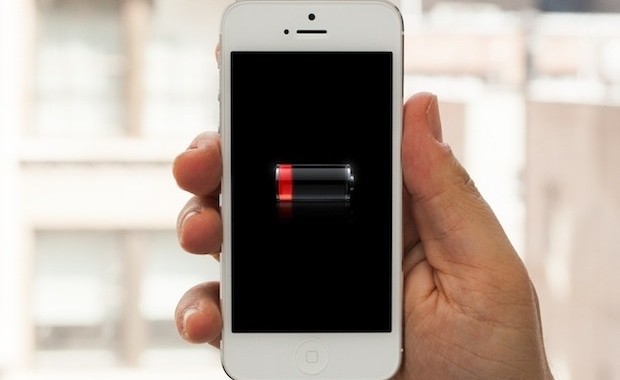
There’s one thing that every Smartphone user dreads it – running low on battery. With all of the added knick knacks that your phone can now do, there is only so much that the phones’ battery can take. And when you couple in the applications that we all love to hoard, the battery often wont even last half the day. This doesn’t have to happen. Today, we will take a look at 10 reasons why your phone’s battery life is horrible and steps you can take to fix this using the iPhone as the benchmark.
You’re Not Limiting Location Services
You’d be surprised by the number of applications that are making use of location services and you don’t even need to make use of it. For an iPhone, by going to Settings > Privacy > Location Services, you will be able to select which applications you would like to have make use of location services. This will prevent your phone from having to continuously check to see the location you are in and pinging this information to the requesting applications.
Your Mail is Always Fetching
Similar to the issue with locations, mail that is set to fetch means that your iPhone continuously check your mailbox server, waiting for a new message. Once one arrives, your iPhone is notified and you are able to choose whether or not to check the email or not. By going to Settings > Mail, Contacts, and Calendars > Fetch New Data > Manually, you are able to have your iPhone check your mailbox only when you manually go to your iPhone Mail app and refresh.
Your Apps Are Always Running
Your phone has probably been able to run multiple apps at the same time. This may be useful when you need to switch between multiple applications however, it becomes a nuisance when you find yourself failing to quit an application for a long period of time, unnecessarily. You can alleviate this problem by double-tapping the home button, and swiping the screen card up to quit. You can even use multiple fingers at the same time to quit multiple apps at once.
Your Screen is Too Bright
It is obvious that having a bright screen can kill your battery. However, many individuals fail to understand or acknowledge this. As a result, they will find themselves with their battery lives dying faster.
You Have Automatic Downloads On
On the iPhone, you are able to have it so that your applications from the app store automatically update whenever there is a new update. However, with your iPhone constantly checking to see if there is a new update, along with the other applications which are already updating, you can find yourself with a battery life that is constantly being used up. To prevent automatic downloads from the App Store or even the iTunes store, among others, go to Settings > iTunes and App Store, and toggle which applications you’d like to have automatic downloads for and those you don’t.
You’re Push Notifying Your Phone
Aside from fetching, push notifications is another culprit for poor battery life with most Smartphones. With push notification, you are able to be notified if a new alert hits your phone, which will allow you to answer or ignore it. If you have some applications where this is completely unnecessary turn it off!
You Have AirDrop Continuously On (iPhones only)
AirDrop is a feature that allows individuals to send photos, videos, and other multimedia to other iPhones in the same vicinity. Depending on the speed of one’s personal network connect, this may be faster than sending by email or MMS because AirDrop doesn’t make use of the cellular network. You can toggle AirDrop off by going to the Control Center and pressing AirDrop and select “off”.
Your Bluetooth is On
With the advancement and creation of features and applications that now do the jobs that bluetooth once did, it can be a feature that you can find yourself turning off without a care. To do so on the iPhone, simply bring up the control centre and click on the Bluetooth symbol which is located to the right of the WIFI symbol.
You Have Too Many Apps
Chances are, you may not find the problem being that you have too many applications in multi task, you might simply have too many applications on your phone in general. Take a look at the applications that you find you aren’t making use of anymore and delete them from your life.
You should download an app when you find you need to make use of it and give it a deadline. Each day the app isn’t in use adds to the deadline timer. Once an app reaches its deadline, for example a month of non-use, delete it!
You Aren’t Extending Your Battery
Chances can also be that you just aren’t extending your battery as much as you should. When your battery is at 20%, do you continue to use your phone as normal or do you make adequate precautions, such as the ones mentioned above? If not, then this may be the time to include them in.
Conclusion
If you’re still struggling to get good life out of your phone’s battery then us call us on 09 4448823, send us an email at enquiries@advancedcomputers.co.nz or come in to one of our branches.